151
linux4noobs
3217 readers
1 users here now
linux4noobs
Noob Friendly, Expert Enabling
Whether you're a seasoned pro or the noobiest of noobs, you've found the right place for Linux support and information. With a dedication to supporting free and open source software, this community aims to ensure Linux fits your needs and works for you. From troubleshooting to tutorials, practical tips, news and more, all aspects of Linux are warmly welcomed. Join a community of like-minded enthusiasts and professionals driving Linux's ongoing evolution.
Seeking Support?
- Mention your Linux distro and relevant system details.
- Describe what you've tried so far.
- Share your solution even if you found it yourself.
- Do not delete your post. This allows other people to see possible solutions if they have a similar problem.
- Properly format any scripts, code, logs, or error messages.
- Be mindful to omit any sensitive information such as usernames, passwords, IP addresses, etc.
Community Rules
- Keep discussions respectful and amiable. This community is a space where individuals may freely inquire, exchange thoughts, express viewpoints, and extend help without encountering belittlement. We were all a noob at one point. Differing opinions and ideas is a normal part of discourse, but it must remain civil. Offenders will be warned and/or removed.
- Posts must be Linux oriented
- Spam or affiliate links will not be tolerated.
founded 2 years ago
MODERATORS
152
153
155
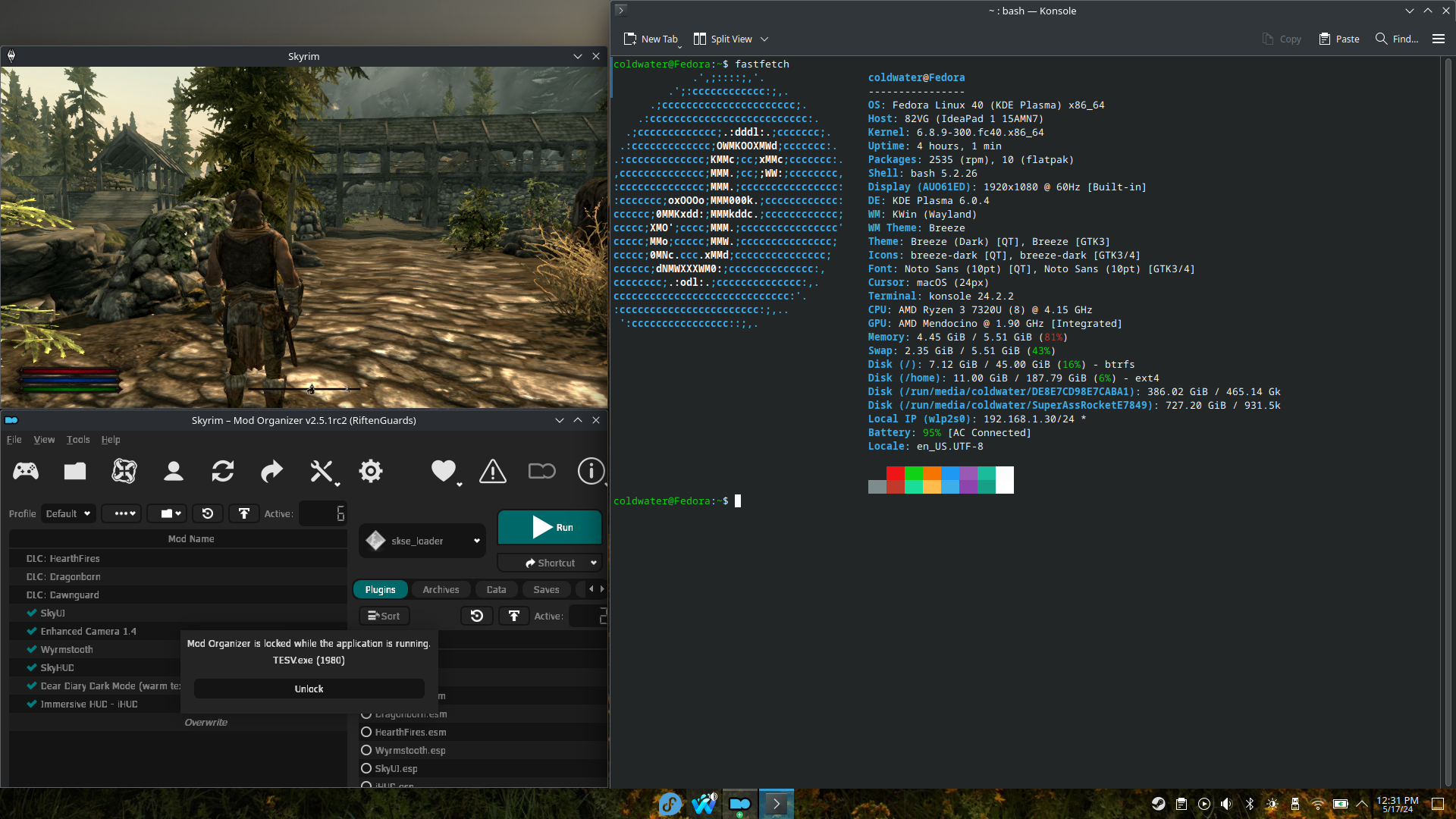
Previously used Endeavors, OpenSUSE, PopOS and GTA run 5 fps now on Fedora it run 25-40fps 1080 high

156
157
158
159
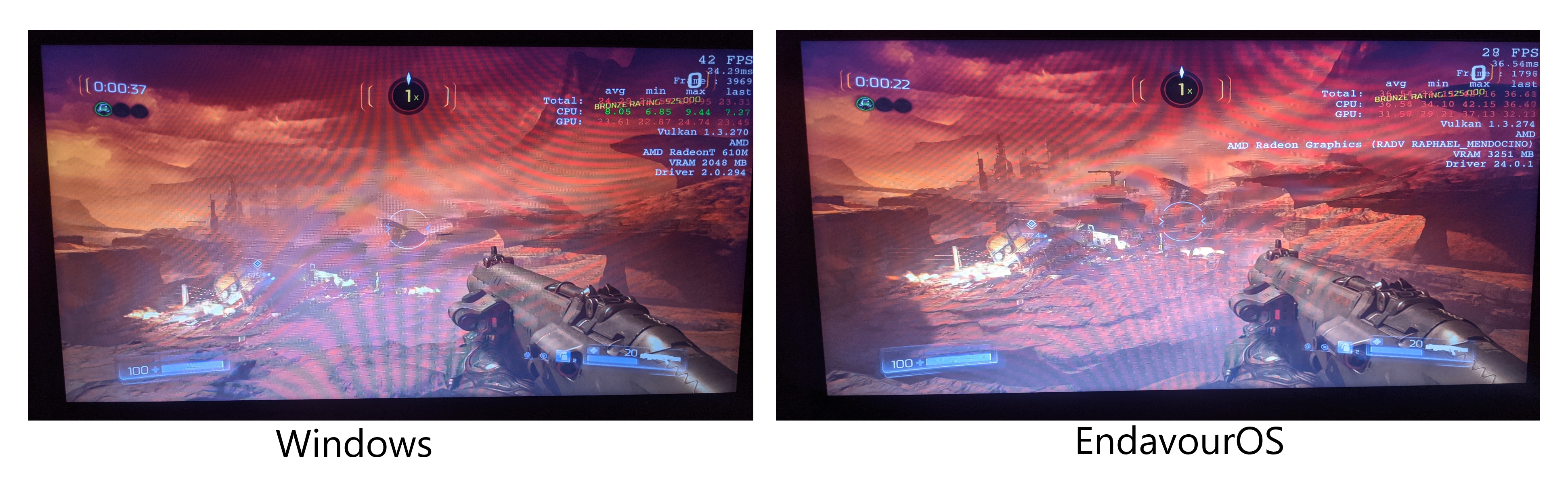
After 3 days I finally got doom running but it's not running very well (both on high setting 720p), not just doom I only got half the fps compared to windows on every games I tried, I'm so confused right now and I don't know what to do. I pretty new to Linux any help is appreciated, this is hardware I'm running on: AMD Ryzen 3 7320u, Radeon 610m, Nvme, Latest Wine and Endeavors OS with vulkan
160
161
162
163
164
165
166
167
I thought it might be nice to start a daily tips & tricks post to stimulate some conversation while offering up fundamental knowledge to those who might appreciate it. And it gives me something to get my brain going with my morning coffee. I intend for them to be very brief (this turned out to be a lie) and serve as a starting point for anyone who may wish to dig deeper through their own research or discussion.
Feel free to add any additional thoughts or questions in the comments. Certainly please correct me if I make any mistakes. If there are any topic requests for future tips & tricks, throw them out there or if you have one of your own you'd like to share, please post it. I'll try to post and/or feature one daily. If I don't have time to write my own and no one else has offered anything up, I'll find something interesting elsewhere to feature.
File Permissions and Ownership
Understanding permissions and ownership for files and directories gives you granular control over who can access and modify your files. Understanding this is especially essential for security and privacy. I'll be working in the terminal to explain:
View Permissions
To view permissions, run ls -l. This outputs a long listing of the files in your current directory. The information in the far left column are the permissions. It should be noted that everything in Linux is treated as a file, including directories. This isn't technically true, but you can think of it this way for our purposes here.
drwxr-xr-x is an example of permissions for one of my directories I'll refer to as funny_memes.
Permission Symbols
d= directoryr= readw= writex= execute-= not set (or regular file)
For our purposes, you can ignore the first character. Most commonly you'll see 'd' or '-' to denote it being a directory or a regular file. There are also others you may wish to explore (symlinks, sockets, etc).
The 3 groups we are interested in each contain 3 characters. That is, 3 groups of 3. (I know this is confusing, but "group" is one of the groups of 3.) The order of these groups are 'user', 'group', and 'others'. That order is specific and important to remember. To use my funny_memes example, my current permissions are set as follows:
~$ ls -l
drwxr-xr-x. 1 PlutoParty PlutoParty 0 Aug 9 04:08 funny_memes
| Type | User | Group | Others |
|---|---|---|---|
| d | rwx | r-x | r-x |
This means the user who owns this directory can read, write, and execute. The group assigned to this directory can only read and execute. And all others can also only read and execute.
Ownership
In the ls -l output, the user and group assigned to the directory (or file) is displayed just after the permissions, in that order. In my example, PlutoParty is my user and PlutoParty is the group of the funny_memes directory.
Changing permissions
Octal Notation
Permissions can be changed with chmod using octal or symbolic notation. Understand the 3 bit octal notation is a little tricky to understand at first. In short, for each group (user, group, and others) the sum of the bits set determines the file permission. Individual permission bits are as follows:
- 'r' (Read):
4 - 'w' (Write):
2 - 'x' (Execute):
1
If I wanted to give execute and read permission only to a user, group, or to others, for example, that permission value would be 5. (1 + 4). Full permissions would be 7. Read and write only would be 6. This works because every combination is a unique sum.
Here is a cheat sheet of all the combinations for reference:
| Octal Value | Permissions |
|---|---|
| 0 | No permissions |
| 1 | Execute only |
| 2 | Write only |
| 3 | Write and execute |
| 4 | Read only |
| 5 | Read and execute |
| 6 | Read and write |
| 7 | All permissions |
The user, group, and others each get a value set. To change my funny_memes directory to full permissions for user, group, and others, I'd set that with chmod 777 funny_memes. Again, each number represents the sum of the permission bits you want assigned for user, group, and others, individually and in that order. 777 gives full permission to each of them because 4 (read) + 2 (write) + 1 (execute) = 7.
If I want to only allow the user full permissions (myself, in this case) and deny group and others anything, I'd run chmod 700 funny_memes. One more example is if I wanted to allow the user to read and write while only allowing the group and others to read, I'd use chmod 644 funny_memes
For many people, this is tricky to remember and understand at first. So, don't get frustrated. Write the individual permission bits down (read, write, and execute - not the full cheat sheet) from above and use it. You'll quickly have it memorized. It's really only 3 numbers to memorize. If you memorize those and remember that the order is user, group, others, you'll be a master at setting permissions with octal notation by the end of the day. In my opinion, it is actually easier than setting with symbolic notation, which we'll get familiar with now.
Symbolic Notation
u: owner of the file.g: group associated with the file.o: users who are not the owner or part of the group (others).a: all users (or you can also use ugo combined).
Permissions:
r(read)w(write)x(execute)
Operators:
+: Adds a permission.-: Removes a permission.=: Sets the specified permissions and removes any others.
If we had a script called do_backup.sh and we want to set the permissions for the owner to execute, the group to read, and deny others from any permissions, we'd run chmod u+x,g+r,o- do_backup.sh. You can add or remove permissions individually in this manner. You can also combine u, g, or o as needed if they will have identical permissions. I think this is handy for 'fine tuning' any permissions, but it is a bit (hehe) of a pain to type it all out in comparison to 3 numbers that can quickly be added up in your head.
Changing Ownership and Conclusion
In order to change the owner and group of a file (which you may need elevated permissions to do depending on existing permissions), I'll leave you to explore the chown and chgrp commands. They are pretty straightforward, but do offer more advanced options you can read about in the man pages.
And that's really the basics of assigning permissions. To explore more, I'd suggest reading the man pages on the following commands:
man chmodman chownman chgrp
Those really interested may want to go on to read about creating and managing groups.